NovaStar NovaLCT Download, Setup & Configuration Guide 2026
NovaStar NovaLCT is a professional LED display control and configuration software developed by NovaStar. In the professional LED display industry, stable control systems and reliable configuration software are critical to achieving high-quality visual performance.
Whether you are working with indoor fine pitch LED displays, outdoor advertising screens, rental LED walls, or large-scale video walls, NovaLCT software plays a critical role in ensuring stable performance, accurate image display, and efficient system setup.
This guide offers a complete overview of NovaStar NovaLCT, covering its features, applications, system requirements, NovaLCT download options, installation steps, and practical usage tips.
Table of Contents
1. What Is NovaLCT Software?
NovaLCT is a professional LED display control and configuration software developed by NovaStar. It is mainly used for configuring LED display systems that use NovaStar sending cards, receiving cards, and video controllers.
NovaStar NovaLCT software allows users to:
- Configure LED screen parameters
- Load and manage receiving card files
- Adjust brightness, grayscale, and color performance
- Perform screen calibration and diagnostics
- Manage communication between hardware devices
In short, NovaLCT acts as the “brain” behind NovaStar LED control hardware, ensuring that LED screens display content accurately and stably.
NovaLCT is typically used during the initial installation phase, system debugging, and ongoing maintenance of LED display systems. It works seamlessly with NovaStar sending cards, such as the MCTRL series, as well as various NovaStar receiving cards.
2. Key Features of NovaStar NovaLCT
With powerful system management tools and seamless integration with NovaStar hardware, NovaLCT software helps users efficiently set up, adjust, and maintain LED display systems.
Below are the key features that make NovaStar NovaLCT software an industry-trusted solution:
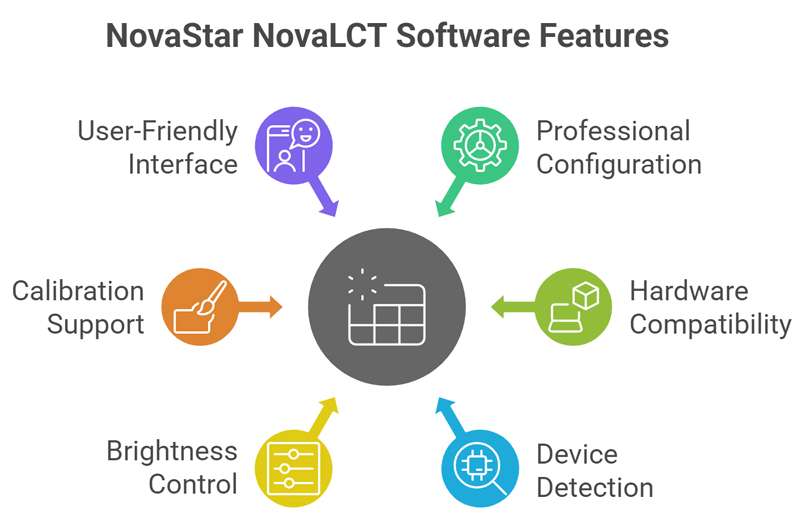
① Professional LED Screen Configuration
NovaStar Nova LCT provides powerful tools for configuring LED display parameters, including cabinet resolution, module layout, scanning mode, and signal mapping. This ensures accurate pixel alignment and stable image output across the entire screen.
② Seamless Compatibility with NovaStar Hardware
The NovaLCT software is fully compatible with NovaStar sending cards, receiving cards, and video controllers, enabling smooth communication and unified system management within one platform.
③ Intelligent Device Detection and Monitoring
NovaLCT automatically detects connected devices and displays real-time hardware status, helping users quickly identify connection issues, abnormal modules, or configuration errors during installation and maintenance.
④ Advanced Brightness and Color Control
Users can precisely adjust brightness, grayscale levels, gamma, and color balance to achieve optimal visual performance for different environments and applications.
⑤ Support for Calibration and Uniformity Adjustment
NovaLCT supports brightness and color calibration, helping improve screen uniformity and ensuring consistent display quality across large LED video walls.
⑥ User-Friendly Interface with Manual Support
With a clear interface and detailed NovaLCT manual guidance, both beginners and experienced engineers can complete setup and debugging tasks efficiently.
3. NovaLCT Download and Install for Free
Before installing NovaLCT, please ensure that your PC meets the following system requirements. To avoid potential installation conflicts, it is recommended to temporarily disable any antivirus or security software during the installation process.
https://youtu.be/ci-iub-FXcA?si=p0PuLBEGvXKQbl78
Minimum System Requirements
Operating System: Windows 7 (32-bit)
Processor: Intel Core i3 (5th Generation)
Memory (RAM): 4 GB
Recommended System Configuration
Operating System: Windows 10 (64-bit) or later
Processor: Intel Core i5 (10th Generation) or higher
Memory (RAM): 8 GB or more
Ensuring that your computer meets or exceeds the recommended configuration will help guarantee stable performance and smooth operation of the NovaLCT software.
Here are NovaLCT software downloads and the NovaLCT manual downloads!
3.1 NovaLCT Software Download
|
NovaLCT Version |
Download |
|
NovaLCT Windows V5.4.8 |
|
|
NovaLCT Windows V5.5.0 |
|
|
NovaStar NovaLCT V5.6.0 |
|
|
NovaStar NovaLCT V5.7.0 |
|
|
NovaStar NovaLCT V5.8.0 |
|
|
NovaStar NovaLCT V5.8.1 |
3.2 NovaLCT Manual Download
| NovaLCT Manual | Download |
| NovaLCT Configuration Tool User Manual Synchronous V5.4.8 | Download |
| NovaLCT Configuration Tool User Manual Multimedia Player V5.4.8 | Download |
| NovaLCT Test Tool User Manual V5.4.8 | Download |
| NovaLCT Configuration Tool User Manual Synchronous V5.5.0 | Download |
| NovaLCT Configuration Tool User Manual Multimedia Player V5.5.0 | Download |
| NovaLCT Test Tool User Manual V5.5.0 | Download |
| NovaLCT Configuration Tool User Manual Synchronous V5.6.0 | Download |
| NovaLCT Configuration Tool User Manual Multimedia Player V5.6.0 | Download |
| NovaLCT Configuration Tool User Manual Synchronous V5.8.0 | Download |
| NovaLCT Configuration Tool User Manual Multimedia Player V5.8.0 | Download |
| NovaLCT Configuration Tool User Manual Synchronous V5.8.1 | Download |
| NovaLCT Configuration Tool User Manual Multimedia Player V5.8.1 | Download |
3.3 NovaLCT Software Installation Guide
After completing the NovaLCT software download, follow these steps to install the software correctly:
- Extract the installation package
- Run the installer with administrator privileges
- Install the necessary USB or network drivers
- Restart the computer if prompted
- Launch NovaLCT software and connect your LED control hardware
Once installed, NovaLCT will automatically detect connected NovaStar devices, allowing you to proceed with configuration.
4. NovaLCT User Interface Overview
The NovaLCT user interface is designed to provide clear access to essential LED display configuration and control functions once the user has successfully logged in. When a NovaStar sending card is connected and the user enters Advanced Synchronous System User Login, the main window becomes fully available.
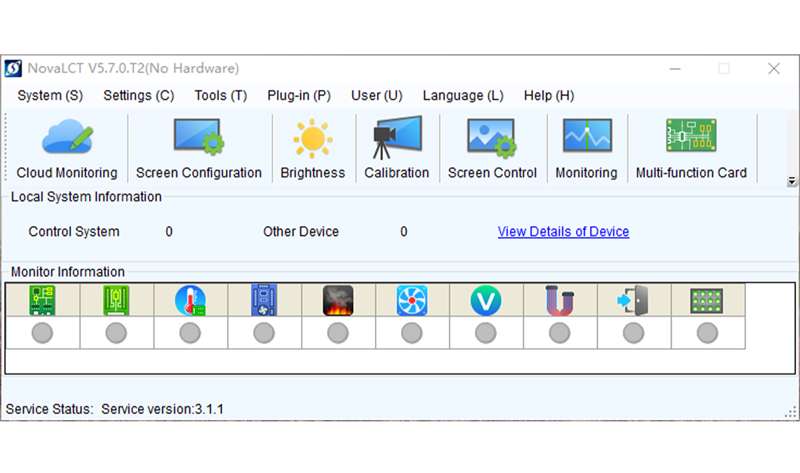
At the top of the interface, a menu bar offers quick access to core system functions, including System, Settings, Tools, Plug-in, User, Language, and Help. These menus allow users to manage system parameters, user permissions, language preferences, and software tools efficiently.
The main function toolbar displays commonly used modules such as Screen Configuration, Brightness, Calibration, Screen Control, Monitoring, and Multi-function Card. These icons enable fast navigation for daily setup, debugging, and screen management tasks.
Below the toolbar, the device and monitoring area shows real-time information about connected control systems and receiving cards. Users can view device status, monitor communication, and access detailed hardware information for troubleshooting.
Overall, NovaStar NovaLCT software interface is structured to support professional workflows, allowing engineers to configure, monitor, and maintain LED display systems with high efficiency and reliability.
5. How to Setup and Configure NovaStar NovaLCT?
NovaStar NovaLCT supports two primary configuration methods depending on the type of control system used: Synchronous System configuration and Multimedia Player configuration.
Each method is designed for different LED display applications and operating environments. While the basic setup steps are similar, the detailed configuration process varies between the two systems.
https://youtu.be/d4p8vPEMhEY?si=-gFQt_aL9LSsp-b0
Below is a high-level overview of both methods. For step-by-step instructions and advanced settings, it is recommended to download the corresponding NovaLCT user manuals.
Method 1: Synchronous System Setup (Overview)
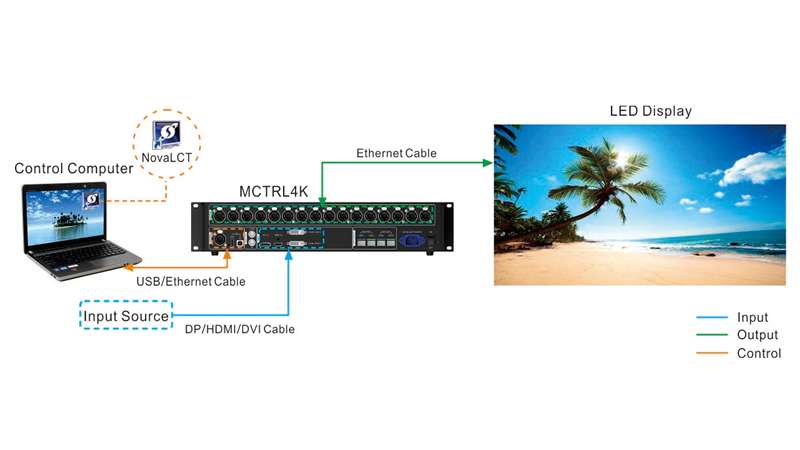
The synchronous system setup is commonly used for LED displays controlled by a sending card, such as large LED video walls, stage rental screens, and commercial advertising displays.
General Setup Steps:
● Install and launch the NovaLCT software on your computer
● Connect the sending card and ensure the LED display system is powered on
● Log in using the Advanced Synchronous System User Login to unlock configuration functions
● Perform basic screen configuration, including cabinet resolution and screen layout
● Load the matching receiving card configuration file
● Save and apply the configuration to complete the setup
For detailed wiring instructions, advanced parameter settings, and troubleshooting guidance, please download the Configuration Tool User Manual – Synchronous.
Method 2: Multimedia Player Setup (Overview)
The multimedia player setup is designed for LED displays that operate independently without a sending card, such as advertising displays and information boards.
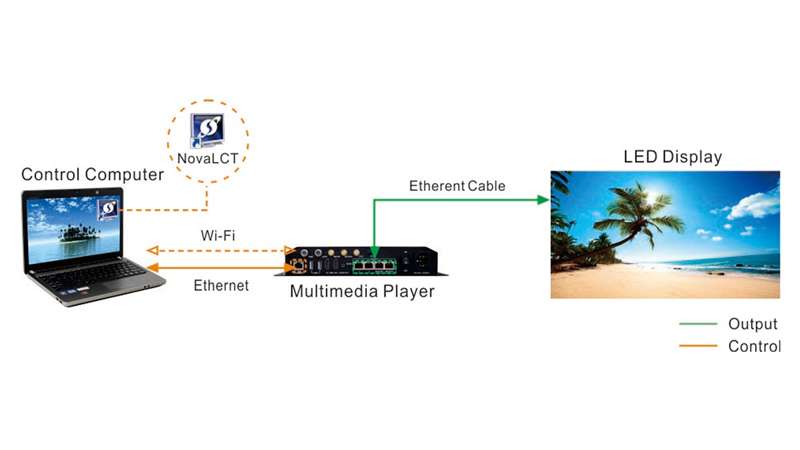
General Setup Steps:
● Open NovaLCT and update the software if prompted
● Select User > Media Player Login to access the multimedia player system
● Connect and detect the multimedia player device
● Configure basic screen parameters, including resolution and module arrangement
● Complete the initial screen setup and player binding
For step-by-step configuration, content management, and playback scheduling, refer to the Configuration Tool User Manual – Multimedia Player.
5.3 Which NovaLCT Setup Method Should You Choose?
Choosing between the synchronous system and multimedia player setup depends mainly on the scale of your LED display and the level of control required.
Synchronous system configuration is ideal for larger, more complex installations that require precise synchronization, such as those with multiple cabinets and high-resolution LED displays. This method allows for advanced adjustments and professional-level control over display parameters.
On the other hand, the multimedia player setup is better suited for smaller, standalone displays or scenarios where the LED screen needs to operate independently without a sending card. It simplifies configuration and content management, making it more user-friendly for advertising boards, information displays, or single-screen installations.
5.4 Cases Studies
https://youtu.be/aB8gZmCaSKg?si=DL-B4uh31CKS-xnFhttps://youtu.be/9JgvLvCvHUw?si=9Q2Njpnp7MD9V5aV
6. Common Setup Issues for Beginners
Even though NovaLCT software is user-friendly, beginners may encounter some common challenges:
Incorrect Device Detection – Ensure stable network connections and correct IP assignment for sending cards or multimedia players.
Resolution or Module Mismatch – Incorrect cabinet resolution or module layout can cause distorted or blank display areas.
Login and Permission Errors – Using the wrong user login may block access to configuration functions.
Configuration Not Applied – Always save and apply settings after configuration.
Firmware or Software Version Conflicts – Ensure NovaLCT software and device firmware versions are compatible.
Tip: Double-check connections, update to the latest NovaLCT version, and follow the user manual for step-by-step guidance.
7. How to Update NovaLCT Software?
Keeping NovaStar Nova LCT updated ensures compatibility with the latest LED display hardware and access to new features. There are two update methods:
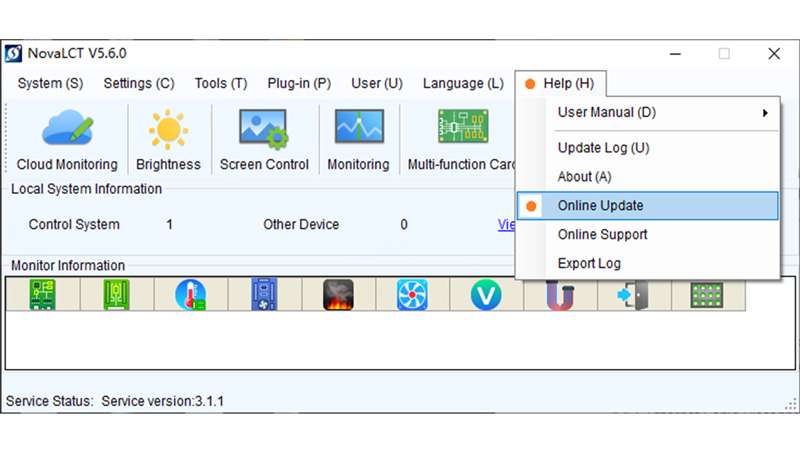
7.1 Online Upgrade
From the menu bar, choose Help > Online Update.
Confirm the update when prompted.
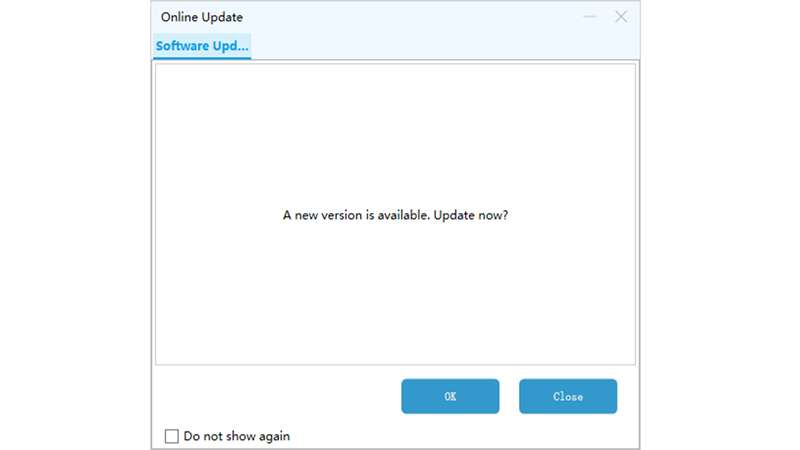
The software will download and install the latest version automatically.
Restart NovaLCT after completion.
7.2 Local Upgrade
Visit the NovaStar Download page and download the latest NovaLCT installation package (e.g., V5.8.1).
Close NovaLCT before installation.
Run the downloaded package and follow the on-screen instructions.
Launch NovaLCT to verify the updated version.
Tip: Always back up configuration files before updating to prevent potential data loss.
8. NovaStar NovaLCT vs NovaStar SmartLCT
NovaStar offers several LED control software options, with NovaLCT and SmartLCT being the most notable. Both are official tools, but they differ significantly in functionality, target users, and current support.
NovaLCT is a professional-grade tool designed for integrators and engineers needing full system setup, calibration, and advanced control. It supports synchronous and multimedia player systems, detailed parameter adjustments, real-time monitoring, and redundancy settings.
SmartLCT was originally designed as a lightweight, user-friendly tool for basic screen configuration, such as cabinet layout and brightness adjustment. It supported Windows and macOS. SmartLCT lacks advanced parameter control and does not support new-generation devices, making it less suitable for modern projects.
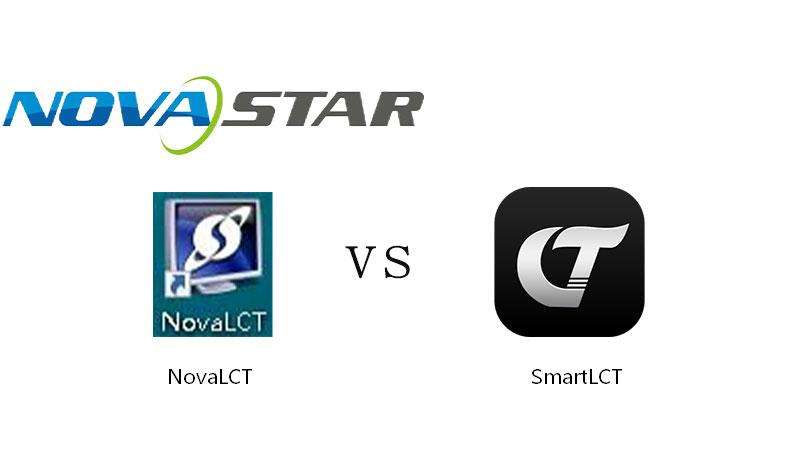
Key Feature Comparison:
| Feature | NovaLCT | SmartLCT |
| Primary Use | Professional LED configuration & control | Basic screen layout and brightness adjustment |
| Supported Systems | Synchronous & Multimedia Player | Basic LED screens (legacy devices) |
| Advanced Control | Yes,parameter tuning, monitoring, redundancy | No |
| Platform Support | Windows | Windows & macOS (legacy) |
| Current Status | Actively maintained | Phased out, limited support |
| Recommended For | Large-scale, complex, or professional installations | Basic setups on older or legacy devices |
In all, for modern LED projects requiring full control, Nova LCT is the preferred choice, offering professional features, device compatibility, and ongoing support. SmartLCT may still be used for simple, legacy installations but is largely obsolete for new devices.
9. FAQs
Q1: Is NovaLCT free to download and use?
Yes. NovaLCT is free software provided by NovaStar. Users can download and use it without a license, as long as they are working with compatible NovaStar control hardware.
.elementskit-card END
Q2: Which operating systems does NovaLCT support?
NovaLCT currently supports Windows OS only. It does not support macOS. Users who require macOS compatibility should note that older tools like SmartLCT are no longer officially supported.
.elementskit-card END
Q3: What is the difference between Synchronous Login and Media Player Login?
Synchronous Login is used for LED displays controlled by sending cards and external video sources, typically for large or complex installations. Media Player Login is used for standalone LED displays that run content independently using multimedia players.
.elementskit-card END
Q4: Why can’t NovaLCT detect my sending card or multimedia player?
This is usually caused by network issues, incorrect IP settings, outdated software, or incompatible firmware. Ensure all devices are on the same network and NovaLCT is updated to the latest version.
.elementskit-card END
Q5: Do I need to update NovaLCT regularly?
Yes. Updating NovaLCT ensures better compatibility with new controllers, improved stability, and access to the latest features and bug fixes.
.elementskit-card END
Q6: Is NovaLCT suitable for beginners?
NovaLCT is powerful but more suitable for professional users. Beginners are recommended to follow the user manuals carefully or start with basic configurations before adjusting advanced parameters.
.elementskit-card END
10. Conclusion
NovaStar NovaLCT has become an industry-standard LED display configuration software due to its reliability, flexibility, and professional-level features. From NovaLCT download and installation to advanced screen calibration and system management, the software supports the entire lifecycle of an LED display project.
For anyone working with NovaStar LED control systems, mastering NovaLCT software is not just an advantage, it is a necessity. By following proper configuration methods and using the NovaLCT manual as guidance, users can ensure optimal performance and long-term stability for their LED displays.