White Spots On Display: How to Fix and Prevent?
White spots on display usually mean more than a simple cosmetic flaw. They can appear as tiny bright dots, cloudy areas, or a fixed white patch on screen on dark backgrounds. Some people call them LCD bright spots or white marks on screen, but the real issue is whether the screen has a deeper hardware problem.
This guide explains what causes white spots on display, how to diagnose them, and when repair or replacement makes sense for monitors, TVs, and phones. If you work with an indoor LED screen, you already know that one bright spot can come from very different faults.
1. What Is White Spots On Display?
White spots on display usually point to uneven light output, panel stress, pixel-level faults, or contamination inside the screen stack. That is why two screens can show a similar bright mark while having completely different root causes.

White Spots on Display
1.1 White Spots Vs. Dead Pixels, Bright Pixels, And Surface Marks
The first step is to separate white spots from other familiar screen defects. A dead pixel is usually dark because it stays off. A bright or stuck pixel stays lit and often appears as a tiny white, red, green, or blue point.
By contrast, a larger white spot is often softer and less defined, especially on LCD panels. Surface marks are different again. Dried cleaner residue, dust, or a light scratch can look pale at one angle but disappear once the screen is cleaned or viewed differently.
That distinction matters because each problem belongs in a different repair category. A tiny bright point may respond to a pixel-refresh tool. A pressure-related patch usually will not. A surface smear may disappear after proper cleaning and never come back.
1.2 Why One Symptom Can Point To Different Screen Problems
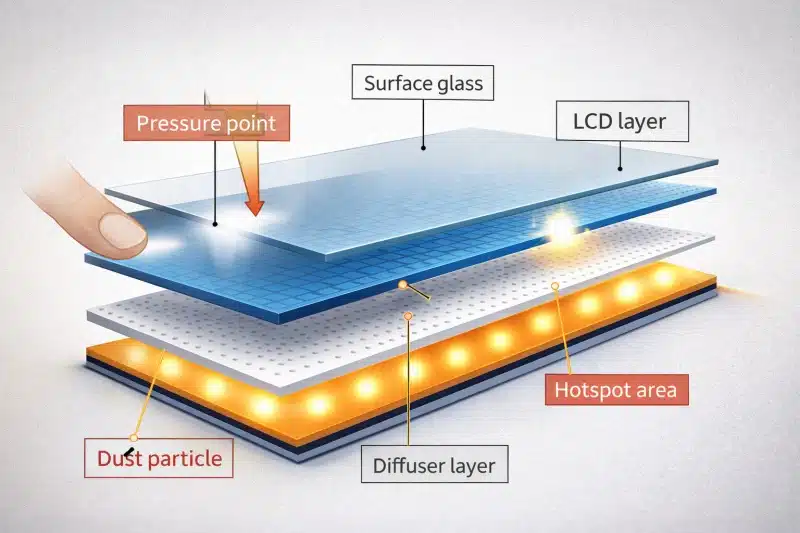
The same visual symptom can come from several layers inside a display. On an LCD, the issue may come from pressure on the liquid crystal layers, a shifted diffuser film, trapped particles, or an uneven backlight.
On an LED display, especially a modular one, the cause may be a failing LED, a driver problem, or poor uniformity.
On OLED, a white-looking area is more likely tied to retention, uneven aging, or localized wear than to a classic backlight fault.
That is why guessing from appearance alone often leads people in the wrong direction. The repair path only makes sense after you identify which part of the display system is most likely responsible.
2. Common Causes of White Spots on LCD, LED, and OLED Displays
White spots do not behave the same way on LCD, LED, and OLED screens because the display structure is different in each case. Once you know what kind of panel you are dealing with, the possible causes narrow quickly.
2.1 How White Spots Appear On LCD Screens
On LCD screens, white spots usually look soft, cloudy, or halo-like rather than sharply defined. LCD panels rely on a backlight passing through multiple internal layers. If those layers are stressed, misaligned, or contaminated, the light no longer spreads evenly. What you see is often a pale bloom instead of a single precise dot.
This is why laptop and monitor users often describe LCD bright spots as foggy circles, pale islands, or gentle glowing patches. The panel still works, but its light distribution is no longer clean.
2.2 How White Spots Appear On LED Displays
On LED displays, white spots more often come from uneven output at the LED, strip, or module level. In LED-backlit TVs, one part of the backlight may shine harder than the rest. In direct-view LED systems, an over-bright LED bead, module fault, or driver issue can create a visible hotspot that breaks screen uniformity.
In practice, that means the symptom often looks harsher and more structural than it does on a laptop LCD. Instead of a soft haze, you may see a stronger bright patch with more defined boundaries.
2.3 Why OLED White Spot Issues Are Different
OLED white spot issues are different because OLED panels do not use a traditional backlight. Each pixel emits its own light, so the causes shift from diffuser and backlight problems toward image retention, burn-in, or localized pixel aging.
That difference matters. If an OLED panel shows an odd bright area, the fix is rarely the same as it would be on an LCD TV or laptop screen. It is often better to think in terms of panel care, retention management, and long-term wear rather than backlight repair.
3. What Causes White Spots On A Display?
Most white spots on a display come from pressure damage, internal light-distribution problems, trapped debris, heat, aging, or manufacturing defects. Those categories explain the vast majority of real-world cases.
3.1 Pressure Damage, Impact, And Improper Cleaning
Pressure damage is one of the most common reasons a screen develops a persistent white spot. A laptop lid squeezed inside a bag, a TV handled badly during installation, a monitor pressed too hard while cleaning, or a phone stressed in one corner can disturb the internal layers enough to create a visible bright patch.
This is also why good cleaning habits matter. Overly aggressive wiping does not just risk scratches. It can create the very layer stress that later shows up as a cloudy white defect.
3.2 Backlight, Diffuser, And Internal Layer Problems
If the backlight or diffuser no longer spreads light evenly, the panel can develop clear bright patches. This is a classic cause on LCD and LED-backlit screens. A shifted diffuser sheet can concentrate light in one place. A failing backlight LED can create a hotspot. Uneven backlight aging can make one region look brighter than the rest, especially during dark scenes.
These problems usually become easier to see at night or in dim rooms. Many users first notice them while watching movies because black or gray scenes make uneven lighting impossible to ignore.
3.3 Dust, Heat, Aging, And Manufacturing Defects
Dust and long-term wear can expose weaknesses that were not visible when the display was new. Trapped debris may disrupt light diffusion. Heat can stress adhesives and accelerate backlight wear. A panel assembled with minor internal inconsistencies may look fine for months before the defect becomes obvious.
| Symptom | Likely Cause | Most Common On | First Practical Step |
|---|---|---|---|
| Tiny fixed bright point | Stuck or bright pixel | Laptops, monitors | Run a pixel test and try a safe pixel-refresh tool |
| Soft cloudy bright area | Pressure mark or diffuser issue | LCD screens, TVs, laptops | Check handling history and avoid more pressure |
| Harsh bright patch | Backlight LED, module, or driver problem | LED TVs, signage | Inspect lighting hardware and uniformity |
| Persistent bright retention-like area | OLED retention or uneven aging | OLED TVs, phones | Use panel care tools and reduce static content |
4. How To Diagnose White Spots Before You Try To Fix Them
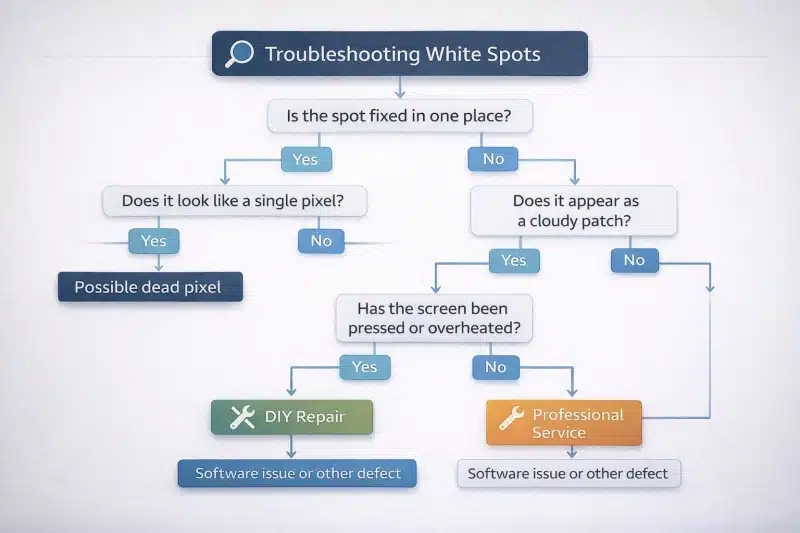
The best diagnosis starts with pattern recognition, not with random repair attempts. Before touching the panel, you want to know whether the mark is fixed, reactive, spreading, or content-dependent.
4.1 Check Whether The White Spot Stays In The Same Place
A true internal issue usually stays in exactly the same location. Open a black image, then a gray one, then a white one. If the bright area remains fixed, the problem is likely inside the panel. If it shifts with angle or seems to vanish after careful cleaning, it may be external residue instead of a hardware fault.
4.2 Test Different Backgrounds, Brightness Levels, And Display Settings
Test images can tell you whether the issue is a pixel defect, a light-distribution problem, or just a setting exaggeration. Lower the brightness. Change picture modes. Turn off overly vivid presets. A spot that becomes more obvious on dark content often points to non-uniformity rather than a single stuck pixel.
On OLED products, it is also worth checking whether built-in panel care features are turned on. Manufacturers such as Sony and LG provide guidance on image retention, pixel refresh, and static-image management for OLED panels.
4.3 Think About Recent Pressure, Drops, Heat, Or Cleaning
The screen’s recent history often reveals the cause faster than the screen itself. Ask a few simple questions: was the device dropped, bent, or packed too tightly? Did the bright area appear after cleaning? Has the TV or monitor been running unusually hot? Did the problem appear gradually, or all at once?
Those answers often tell you more than another hour of staring at the panel. A sudden spot after pressure points one way. A slowly worsening patch after years of heat exposure points another.
5. How To Repair White Spots On LED Displays
White spots on LED displays usually need to be fixed at the module, backlight, or driver level rather than with simple surface cleaning. In most cases, the issue is tied to uneven light output, a faulty LED component, unstable power, or poor brightness consistency across the display.
5.1 Localized Bright Areas
The first repair clue is whether the bright area stays fixed and looks clearly stronger than the surrounding image. If the patch remains visible on dark content and holds the same position across test patterns, the issue is usually structural rather than software-related.
This kind of defect is common when a single LED, lighting zone, or display module starts behaving differently from the rest of the screen. The sharper the hotspot looks, the more likely the issue sits deeper in the lighting system.
5.2 Hardware Inspection
Once the issue appears hardware-related, the next step is to inspect the lighting and support components behind the visible surface. On LED-backlit TVs, that often means checking the backlight strips or the LEDs behind the panel. On direct-view LED displays, it may involve inspecting individual modules, connectors, and driver performance.
A practical inspection process includes checking connector seating, power consistency, and whether one module is visibly over-bright. Inconsistent power or driver behavior can make one area stand out even when the rest of the panel remains functional.
5.3 Component Replacement
Repair is only complete when both the faulty part and the brightness balance of the display are corrected. Replacing a bad LED, strip, or module may remove the most obvious defect, but the screen can still look patchy if brightness is not recalibrated afterward.
That is why uniformity checks matter so much in LED repair. A technically successful component swap can still leave the display looking uneven if the repaired section no longer matches its neighbors.
6. How To Repair White Spots On LCD Screens
White spots on LCD screens should be handled carefully because many of them come from internal layer stress rather than from dirt on the surface. The goal is to determine whether the issue is a tiny bright pixel, a pressure mark, or a larger light-diffusion problem before trying any fix.
6.1 Basic Testing
The safest first step is to clean the screen lightly and check how the spot behaves on different backgrounds. A microfiber cloth and simple black, gray, and white test images can quickly show whether the defect is fixed in place, whether it changes with brightness, and whether it looks like a single point or a broader patch.
This step matters because many users assume every white defect belongs in the same category. In practice, a pinpoint of light and a soft cloudy patch usually point to very different faults.
6.2 Fault Type
Small pinpoint defects may respond to pixel-refresh tools, while cloudy or soft-edged spots usually will not. If the mark behaves like a bright pixel, a controlled pixel-refresh attempt may be worth trying. If it looks more like a glowing patch, the cause is more likely pressure damage, layer misalignment, trapped particles, or uneven light spread.
This is where careful observation saves time. Once the issue clearly looks structural, repeated DIY attempts usually add frustration rather than results.
6.3 When To Stop DIY
You should stop home repair attempts when the white spot looks large, spreads, or becomes more visible over time. Many LCD problems worsen because users keep pressing on the panel, hoping the mark will disappear. In reality, extra pressure often enlarges the defect instead of correcting it.
If the panel layers are already stressed or misaligned, internal repair or replacement is usually the only reliable path. At that point, the goal shifts from experimentation to damage control.
7. When Screen Replacement Makes More Sense Than Repair
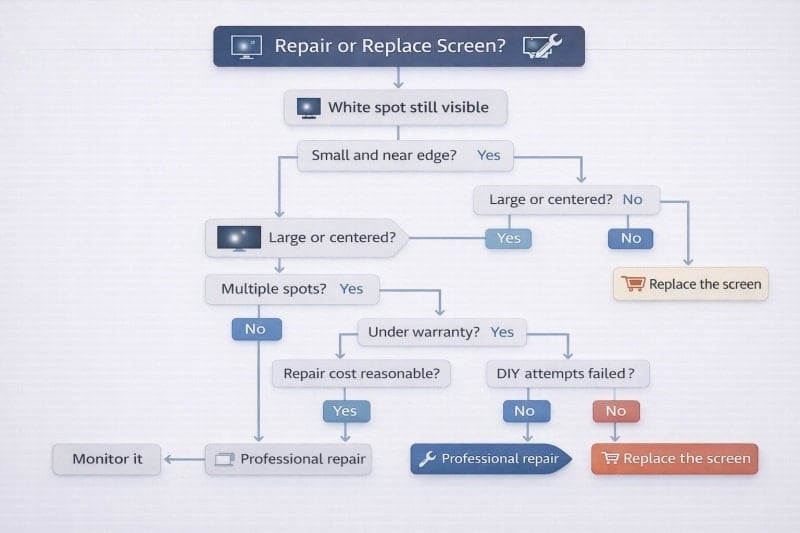
Replacement becomes the better option when the white spot is large, distracting, repeated, or clearly tied to deeper panel failure. Repair makes sense when the issue is limited and the hardware can be serviced cleanly, but replacement is more practical once the screen itself no longer feels stable or worth preserving.
7.1 Viewing Impact
The more the defect affects normal viewing, the stronger the case for replacement. A small bright area near the edge of a secondary screen may be tolerable for a while. A bright patch in the center of a monitor, TV, or phone display usually is not.
Visibility matters more than people sometimes admit. Even if a panel still works, a central defect can reduce usability enough that repair no longer feels like a sensible long-term solution.
7.2 Cost And Risk
Replacement is often smarter when repair costs approach the value of the screen or carry a high risk of incomplete recovery. Some panels can technically be repaired, but the result may still leave uneven brightness, recurring faults, or new stress after disassembly.
This is especially relevant for thin consumer electronics, where labor, parts, and reassembly risk can make partial repair less attractive than it appears at first glance.
7.3 Long-Term Reliability
The real question is not only whether the spot can be reduced, but whether the screen can remain reliable afterward. If the panel already shows multiple bright areas, continued worsening, or obvious structural damage, replacement usually offers the cleaner and more predictable outcome.
From a practical standpoint, replacement is often the better choice when the goal is stable image quality, not just short-term damage control.
8. How To Fix White Spots On Different Devices
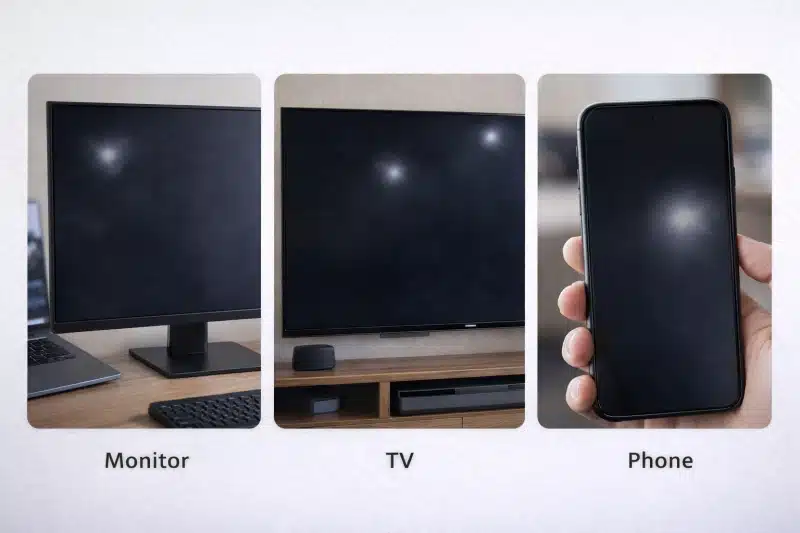
The device type changes both the likely cause and the sensible fix. A laptop monitor, a living-room TV, and a phone may show similar symptoms while needing very different next steps.
8.1 How To Fix White Spots On A Computer Monitor
For monitors, start with testing before touching the panel. Use solid-color test backgrounds, reduce brightness, and check whether the defect behaves like a bright dot or a diffuse spot. If it is a single bright point, a pixel utility may help. If it is a larger glow, review whether the monitor has been pressed, cleaned harshly, or transported recently.
Monitor owners should also check warranty terms because bright-dot policies vary by brand and region. That matters more than many buyers realize, especially on newer units.
8.2 How To Fix White Spots On A TV Screen
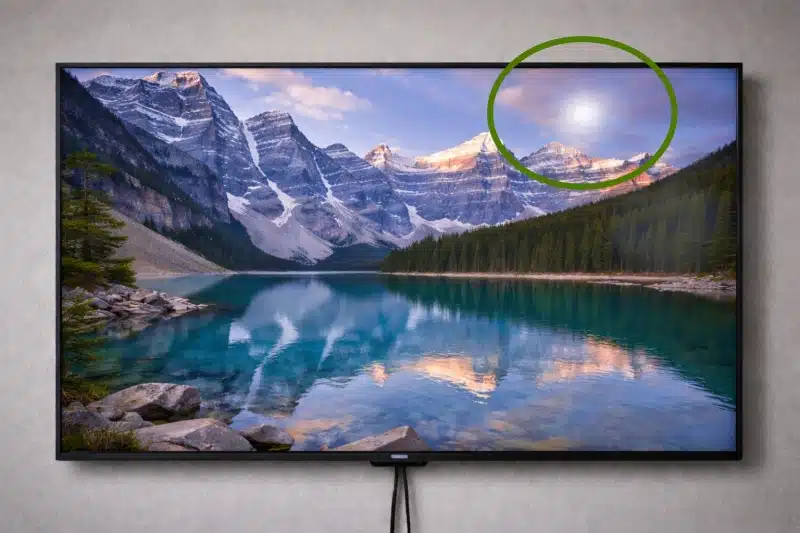
White Dots on TV Screen
For TVs, bright patches often point to backlight or panel-uniformity issues rather than simple pixel faults. Set the TV to a neutral picture mode and test dark scenes. If the issue is localized and obvious, the likely cause is deeper than surface dirt. On OLED TVs, run the manufacturer’s panel care tools and reduce static content before assuming permanent damage.
For LCD and LED TVs, internal backlight service is common, but DIY disassembly is risky unless you already understand the panel stack. One bent film or cracked layer can turn a repairable issue into a total replacement.
8.3 How To Fix White Spots On A Mobile Phone Screen
On phones, white spots are often tied to pressure, localized panel damage, or OLED aging rather than removable debris. Because modern phone displays are laminated and tightly integrated, home repair options are limited. If the issue appeared after impact, battery swelling, or long-term heat exposure, professional service is the safer route.
With phones, the real decision is often not “Can I fix it?” but “Is spot repair realistic, or is full screen replacement the only clean solution?” Most of the time, it is the latter.
9. Do White Spots On A Screen Get Worse Over Time?
Some white spots stay stable for years, while others spread, multiply, or become more noticeable under continued stress. The answer depends almost entirely on what caused them in the first place.
9.1 When A White Spot May Stay Stable
A pressure-related spot may remain unchanged if the original stress is gone and the damage is limited. In practice, a small stable spot can remain annoying but manageable. It may never heal, but it may also never become a serious usability problem.
9.2 When It May Spread Or Become More Noticeable
A white spot is more likely to worsen when heat, pressure, aging, or deeper hardware issues continue. Backlight wear can increase non-uniformity over time. OLED panels exposed to static content can show retention or burn-in more clearly later. Some users also find that the original spot does not grow much, but new spots gradually appear elsewhere.
That is why “it has not grown yet” should not be treated as a guarantee. Stable damage can remain stable, but unstable systems rarely improve by themselves.
10. How To Prevent White Spots On Screens
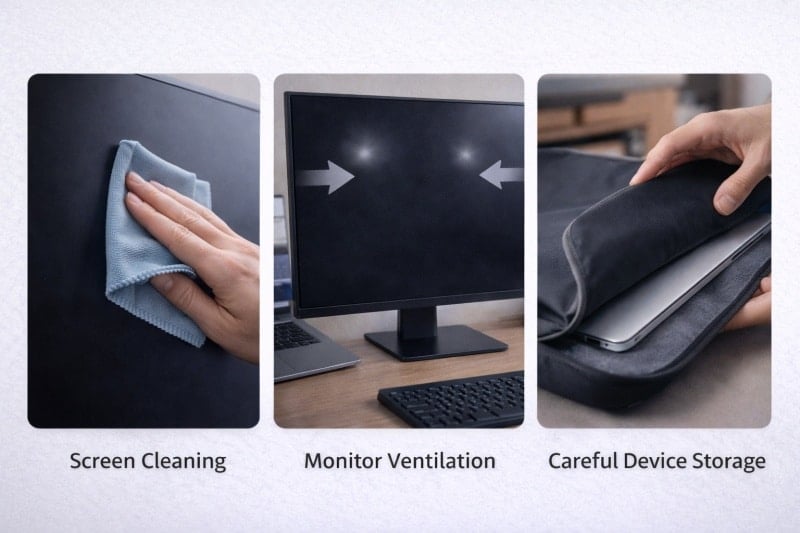
Prevention mostly comes down to reducing pressure, heat, and cleaning mistakes. In my experience, a surprising number of white spot cases are avoidable.
10.1 Avoid Pressure, Impact, And Screen Bending
Never treat a screen like a durable surface, even if the front glass feels solid. Do not stack heavy items on laptops. Do not squeeze monitors into tight storage. Do not lift TVs by pressing directly on the panel. Pressure damage is common, expensive, and often permanent.
10.2 Clean The Screen Gently And Correctly
Gentle, controlled cleaning is the safest cleaning. Use a soft lint-free or microfiber cloth. Dampen the cloth rather than spraying liquid directly on the display. Avoid ammonia, abrasives, solvents, and harsh household cleaners. If you want a solid baseline for safe cleaning practices, Apple’s display cleaning guidance is practical and easy to follow.
10.3 Reduce Heat Buildup And Store Devices Properly
Heat accelerates panel wear and makes existing weaknesses show up sooner. Keep vents clear, avoid leaving devices in hot cars, and do not run enclosed displays at unnecessarily high brightness for long periods. Good airflow and careful storage do more for panel longevity than most people expect.
11. FAQs About White Spots On Displays
The best FAQ answers are the ones that quickly separate fixable cases from structural panel problems. Here are the questions I hear most often.
11.1 Does LCD Burn Go Away?
Temporary image persistence may fade, but structural white spots usually do not. If the issue comes from pressure damage, diffuser problems, or a deeper panel fault, it typically will not disappear on its own.
11.2 Are White Spots Always Caused By Pressure Damage?
No, pressure is common, but it is far from the only cause. White spots can also come from stuck pixels, backlight imbalance, internal dust, manufacturing defects, OLED retention, or long-term aging.
11.3 Can White Spots Be Fixed Without Replacing The Screen?
Sometimes yes, but only when the issue is minor and correctly identified. A stuck bright pixel may improve. Surface contamination may clean off. Settings-related exaggeration may disappear after proper adjustment. Structural panel faults usually do not respond to simple fixes.
11.4 Should I Repair The Display Or Replace It?
You should repair when the fault is isolated and economically serviceable, and replace when the panel itself is compromised. If the screen is under warranty, always check that first. If the defect is central, distracting, or spreading, replacement often saves time, money, and frustration.
Temporary image persistence may fade, but structural white spots usually do not. If the issue comes from pressure damage, diffuser problems, or a deeper panel fault, it typically will not disappear on its own.
No, pressure is common, but it is far from the only cause. White spots can also come from stuck pixels, backlight imbalance, internal dust, manufacturing defects, OLED retention, or long-term aging.
Sometimes yes, but only when the issue is minor and correctly identified. A stuck bright pixel may improve. Surface contamination may clean off. Settings-related exaggeration may disappear after proper adjustment. Structural panel faults usually do not respond to simple fixes.
You should repair when the fault is isolated and economically serviceable, and replace when the panel itself is compromised. If the screen is under warranty, always check that first. If the defect is central, distracting, or spreading, replacement often saves time, money, and frustration.
12. Conclusion
White spots on display are manageable when you identify the type of fault early and choose the fix that matches the panel, not just the symptom. A tiny bright point, a cloudy white patch on screen, and repeated white marks on screen may look related, but they do not belong in the same repair bucket.
If there is one practical takeaway here, it is this: diagnose first, clean gently, avoid pressure, and do not force DIY repair on a screen that is clearly showing structural damage. That approach gives you the best chance of dealing with white spots on display before they turn into a larger failure.